 French
 German
 Italian
 Spanish
 Russian
 Turkish
 Portuguese
 Japanese
 Dutch
Dutch Polish
 Korean
 Chinese (Simplified)
 Chinese (Traditional)
How to edit album art and tags in YouTube to MP3 Converter
YouTube to MP3 Converter automatically looks up the song title, artist, album and cover art - but the results aren't always perfect. Genre and year are especially hit-or-miss, since YouTube rarely carries that information. The important thing to know: you can only edit tags and artwork before you download. Once the file is saved, the app no longer has access to it.
This guide has been written using the Mac version of the program, but the steps for Windows are the same
-
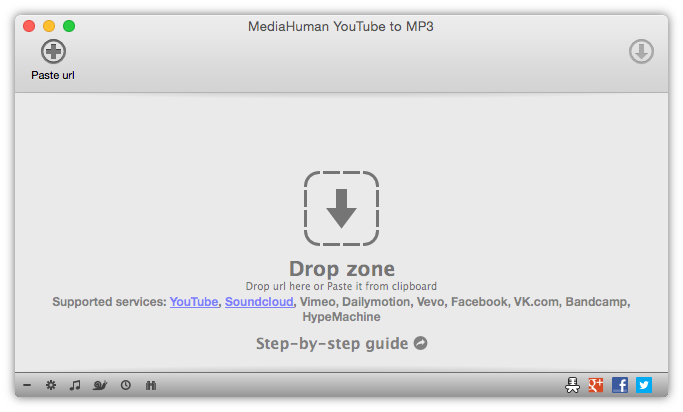
Open YouTube to MP3 Converter
Launch the app. If you haven't installed it yet, download it from our website first.
-
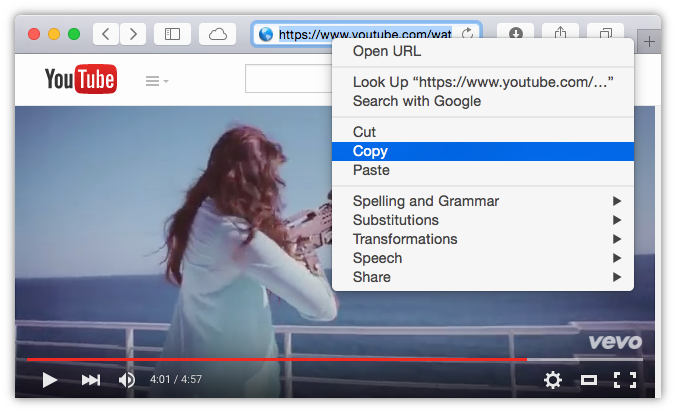
Find your video and copy the URL
Go to YouTube, find the video you want to convert and copy its URL from the browser address bar.
-
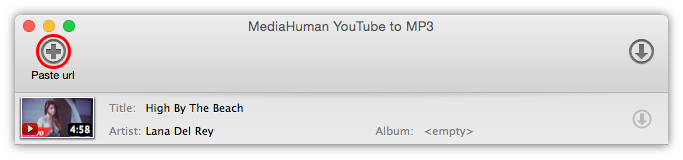
Paste the URL into the app
Click the Paste link button on the toolbar, or drag the link directly into the window. The app will look up the title, artist and artwork automatically. Before you hit Download, take a moment to check what it found.
-
Edit the tags
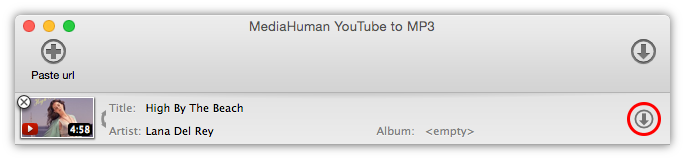
Click any tag field directly in the list — title, artist or album — to edit it. Press Enter to save.
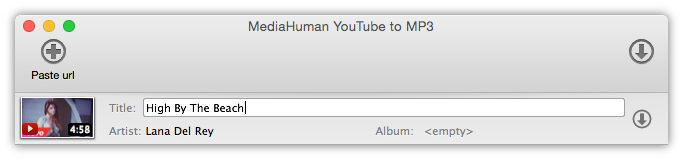
If the title and artist were detected the wrong way around, you don't need to retype them. Hover over the item to reveal a double-arrow icon and click it to swap the two fields instantly.

Genre and year are often missing entirely — YouTube simply doesn't carry that data. You can fill them in manually here. They'll be embedded into the file and show up correctly in any music player, iTunes or Music.app.
-
Change the cover art
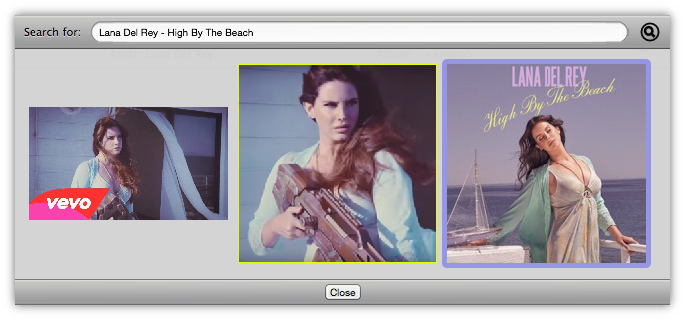
If the artwork isn't right, click the thumbnail to open the cover art editor. The app suggests several options based on the track info. Pick the one that fits, or type your own search to find something better. Double-click an image to apply it.
-
Download
Once you're happy with everything, click the Download button. The tags and artwork are embedded into the MP3 at this moment — open the file in any player and it will show the correct title, artist, album, genre, year and cover art.