 French
 German
 Italian
 Spanish
 Russian
 Turkish
 Portuguese
 Japanese
 Dutch
Dutch Polish
 Korean
 Chinese (Simplified)
 Chinese (Traditional)
How to download and split a YouTube video into separate MP3 tracks by chapters
Many YouTube videos are divided into chapters - named sections visible as segments on the progress bar. If you want to save each chapter as a separate MP3 file, MediaHuman YouTube to MP3 Converter can do it automatically. This is perfect for music albums, podcast episodes, DJ mixes, audiobooks, and any long video with timestamped sections - each chapter becomes its own audio track, ready for your music library or any device.
The screenshots were taken using the Mac version of the program, but the application looks almost the same on Windows and Linux.
-
Find a video with chapters
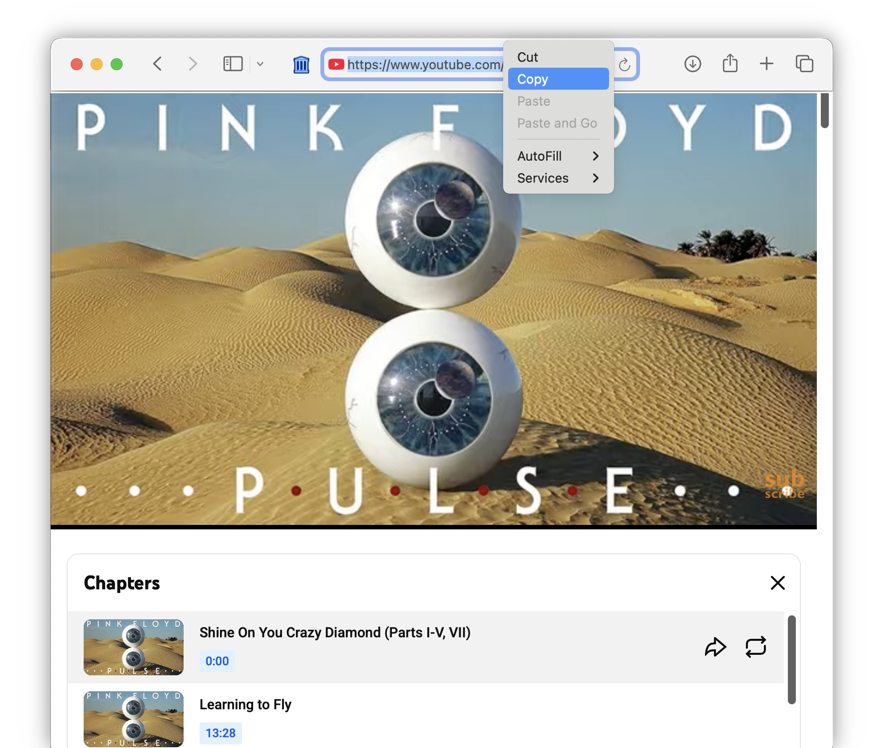
Open YouTube and find a video that has chapters. You can tell by the segmented progress bar below the video or a list of timestamps in the description. Copy the video URL from your browser’s address bar.
-
Paste the link into the converter
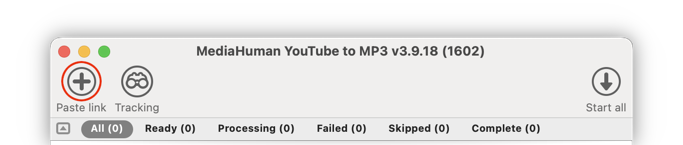
Open MediaHuman YouTube to MP3 Converter and click the Paste link button in the toolbar, or simply press Ctrl+V on Windows or ⌘+V on Mac. The app will fetch the video details, including its chapters.
-
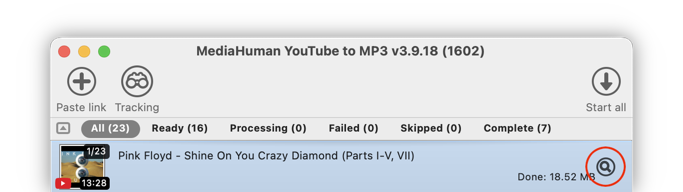
Click the chapters icon to split
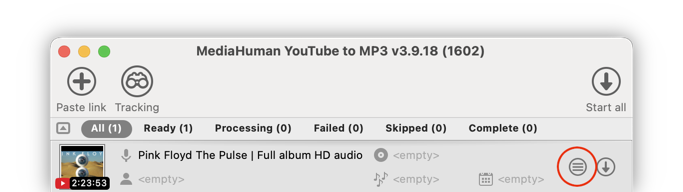
When the video has chapters, a special icon (a list inside a circle) appears next to the download button. Click it - the single video will be replaced by a list of individual tracks, each with its own title and a chapter indicator (e.g. “3/10”) on the thumbnail.
-
Convert to MP3
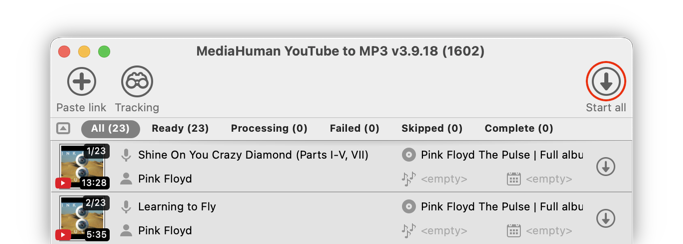
Click Start all to download and convert every chapter to MP3. The program extracts each chapter with precise timing, so you get clean tracks without overlaps or silence between them.
-
Locate your MP3 files
Once the conversion is complete, click Locate next to any track to open its folder. Each chapter is saved as a separate MP3 file with its chapter title as the filename.


Tip: keep tracks organized
Open Preferences → Download tab and enable Place in subfolder named as playlist title. All tracks from one video will be saved in their own folder, named after the original video title - just like an album folder.

Then go to Preferences → Output Music tab and enable Add number to filename. This adds a track number to each file, so tracks stay in the correct order (e.g. “01 - Speak to Me.mp3”, “02 - Breathe.mp3”).
