 French
 German
 Italian
 Spanish
 Russian
 Turkish
 Portuguese
 Japanese
 Dutch
Dutch Polish
 Korean
 Chinese (Simplified)
 Chinese (Traditional)
Converting FLAC to Apple Lossless without quality loss in 2 minutes.
FLAC and ALAC (Apple Lossless) are both lossless formats: each keeps every detail of the original recording. The difference is where they work. The Music app on a Mac and on an iPhone, as well as iTunes on Windows, accept Apple Lossless but not FLAC. An iPhone can play a FLAC file from the Files app, but it won't add it to your music library. So if you want your FLAC albums in the Music app or synced to your iPhone, convert them to ALAC. Since both formats are lossless, you won't lose any quality along the way.
This guide uses the Mac version of the program, but the steps on Windows are the same.
-
Add your FLAC files
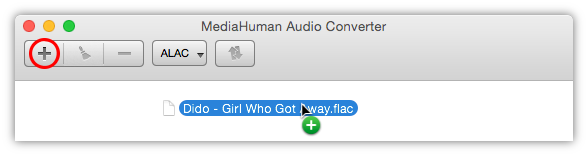
Run MediaHuman Audio Converter and drag your FLAC files into its window. You can also click Add files on the toolbar and pick them in the dialog. Add as many as you like: the whole batch is converted in one go.
-
Split the album, if it comes with a CUE file
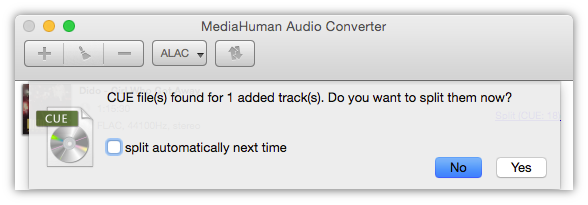
Some FLAC albums come as one large file plus a small .cue file that marks where each track begins. When the program finds a CUE file, it asks whether you want to split the album now. Answer yes to get separate songs, or no to keep the whole album as a single file.
-
Choose ALAC as the output format
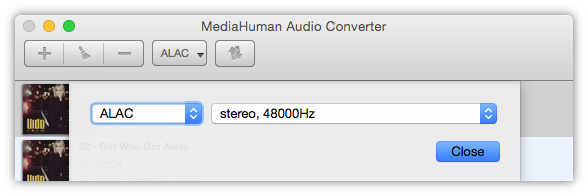
Click the output format button on the toolbar to open the list of formats, and select ALAC.
-
Keep the original quality
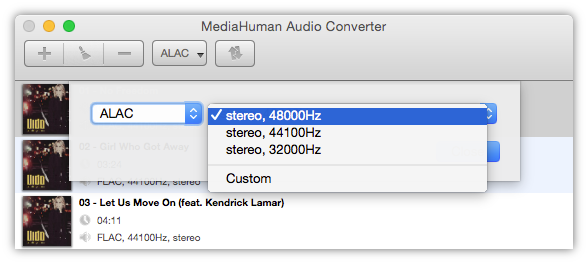
In the list next to ALAC, choose Custom. In the window that opens, make sure Channels, Samplerate and Bit depth are all set to original, then click OK. The ALAC files will then have exactly the same quality as your FLAC files.
-
Start the conversion
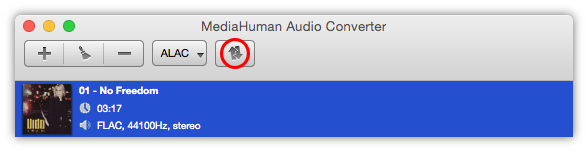
Close the format window and click Start conversion on the toolbar. While the files are being converted, this button turns into Stop conversion, so you can cancel at any moment. The program uses all the cores of your processor, so even a large album is done quickly. If you'd rather keep some of them free for other work, open Preferences and use Limit number of used processors on the General tab.
-
Send the files to the Music app
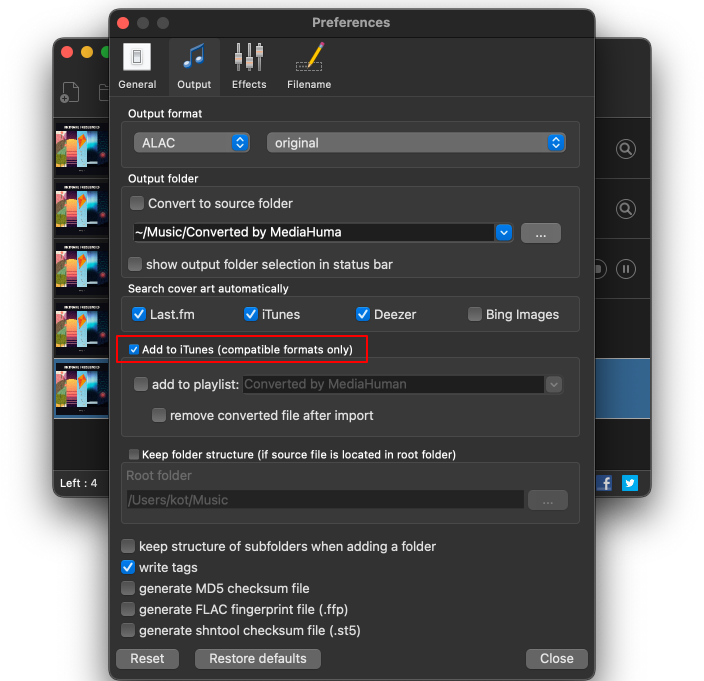
To have the new files land in your library on their own, open Preferences, go to the Output tab and turn on Add to iTunes (compatible formats only). On a Mac this adds them to the Music app, which replaced iTunes. From there, they sync to your iPhone like the rest of your music.


Tip: change the cover art
If a track has no cover or the wrong one, drag a JPG or PNG picture onto it in the list before you start the conversion. The converted file will get the new cover. To give several tracks the same picture at once, select them, right-click and choose Set cover image.