 French
 German
 Italian
 Spanish
 Russian
 Turkish
 Portuguese
 Japanese
 Dutch
Dutch Polish
 Korean
 Chinese (Simplified)
 Chinese (Traditional)
How to convert MP4 video file to MP3 using the free Audio Converter
Sometimes there is need to extract an audio track from a MP4 video file and save it in MP3 format. For example, to get the song from a music video. Or extract speech from educational videos, interviews or lectures to listen to it later. Here is a short tutorial on how to do it with our app.
This guide has been written using the Mac version of the program, but the steps for Windows are the same.
-
Add video file
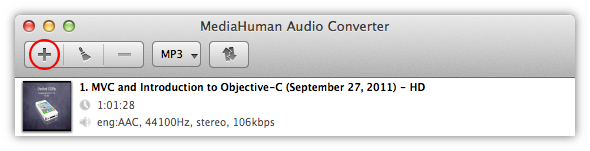
Run MediaHuman Audio Converter application and press Add button on toolbar to add video file (MP4 video in our example). Or you can simply drag'n'drop some files or folders from the file manager on the main window.
-
Select MP3 format
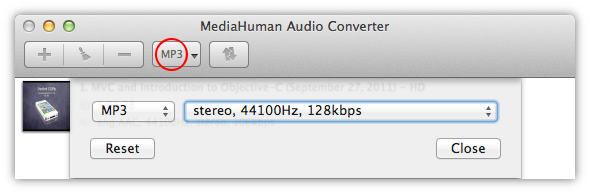
Now you need to select MP3 as an output format. To do it press the corresponding button on the toolbar and select the format from the appeared dialog.
-
Adjust additional format settings
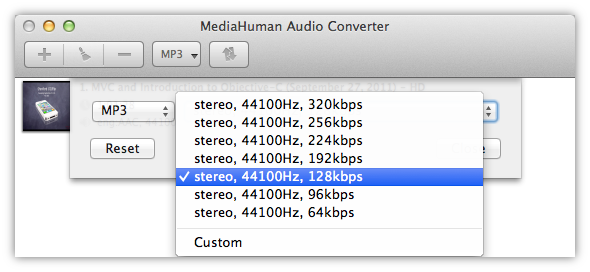
You can select among predefined MP3 settings or set up your own by choosing Custom menu item.
-
Start it
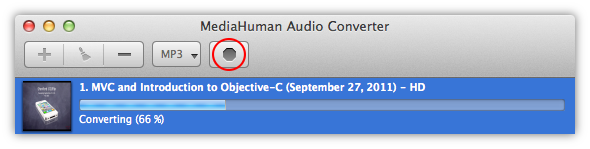
Now we are ready to start the conversion. Press the last button on the toolbar and wait until it is processing. If you've changed your mind press it again to stop the conversion.
-
Complete
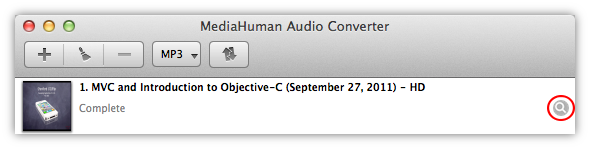
It is done. You can locate the extracted audio file pressing the Locate button on the video item.