 French
 German
 Italian
 Spanish
 Russian
 Turkish
 Portuguese
 Japanese
How to download YouTube videos and audio tracks in minutes.
In today's world, with Internet speeds increasing every day, video content is becoming more accessible to millions of users. YouTube, the largest online video sharing platform, offers a wide variety of content ranging from entertaining videos to educational tutorials. However, if you want to save and enjoy these engaging videos offline, knowing how to download them from YouTube is essential. This guide will show you simple and effective ways to quickly download your favorite YouTube videos so you can enjoy them anytime, anywhere, even without an Internet connection.
This guide is written for the Mac, but all the steps are the same for Windows and Ubuntu/Linux.
-
Find a video
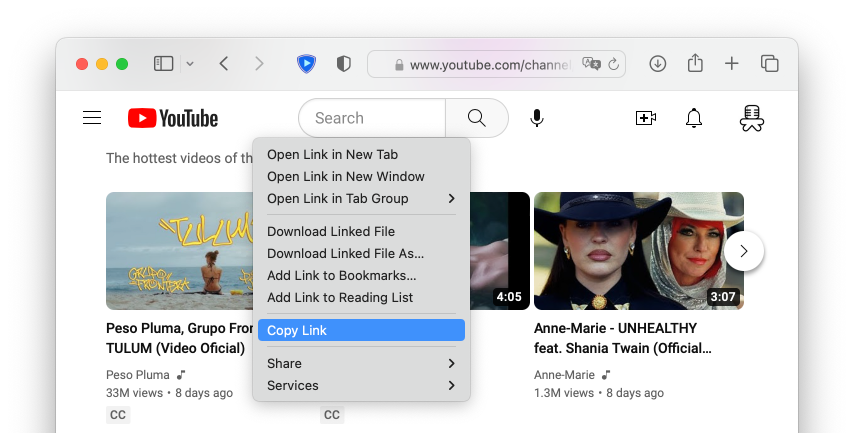
Use your favorite web browser to find a video on YouTube. Then right-click it and copy the link to the clipboard. You can also drag and drop the video link onto the application window.
-
Paste URL (link)
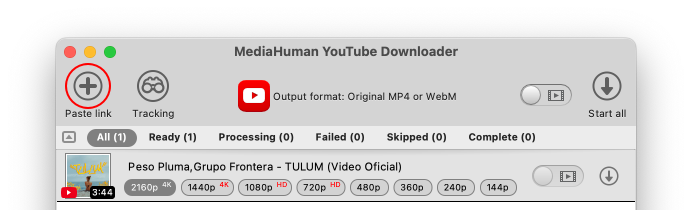
Open YouTube Downloader, or switch to it if it's already running, and click the Paste link button on the toolbar. The video will be added to the list and the app will automatically fetch its details.
-
Choose output format
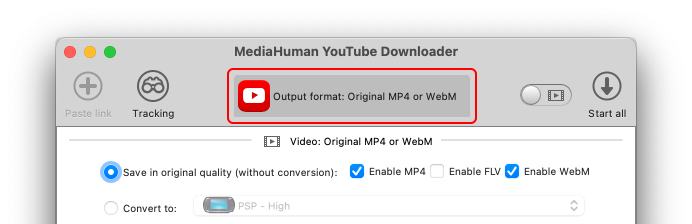
To change the output format, click the middle button on the toolbar. In the new window you will see formats and settings for video and audio download modes. Saving in original quality (without conversion) is the fastest method.
-
Choose Video or Audio Mode
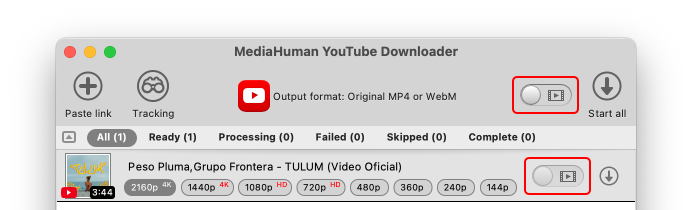
Use the switch to choose between video and audio only download mode. In audio mode the app will extract and save just the soundtrack.
-
Select download folder
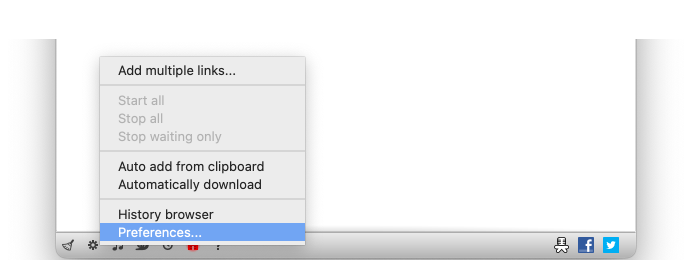
By default the app saves videos to the Movies folder and audio to the Music folder, in a subfolder called Downloaded by MediaHuman. To change this, open Preferences and switch to the Video output or Audio output tab.
-
Start downloading
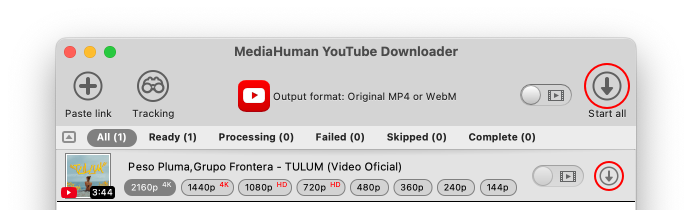
Now everything is ready. To download a single video clip click the Start button next to it, or use Start all on the toolbar to download everything at once. You can continue adding more videos to the queue while downloading is in progress.
-
Finish
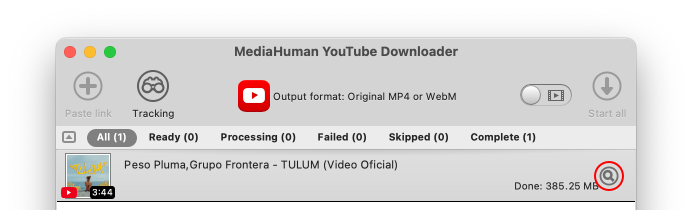
Once the download is complete, click the Locate button to open the file in Finder (or Explorer on Windows).