 French
 German
 Italian
 Spanish
 Russian
 Turkish
 Portuguese
 Japanese
 Dutch
Dutch Polish
 Korean
 Chinese (Simplified)
 Chinese (Traditional)
How to convert WMA files to MP3 format.
Sometimes you can find loads of WMA files on your computer, especially if you have migrated from PC to Mac. Windows Media Player was the default application for ripping CDs on Windows and, of course, default output format was WMA. It's impossible to deal with WMA music without using third party tools on Mac. So look at this short tutorial and make your life easier.
This guide has been written using the Mac version of the program, but the steps for Windows are the same
-
Add WMA files
Start MediaHuman Audio Converter and press Add button on the toolbar to add some WMA files for conversion. Browse to the folder with your audio files and select them.

-
Choose MP3 format
When all files have been added you will need to select MP3 format. To do it press the fourth button on the toolbar.
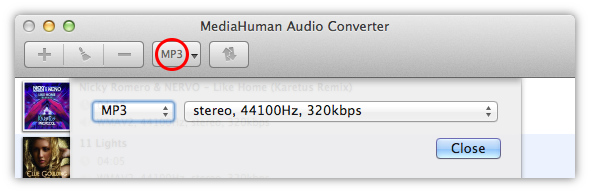
Pressing the arrow on the Format button will display recently used formats. It can be useful for quick changing to the last used settings.
-
Choose settings for output format
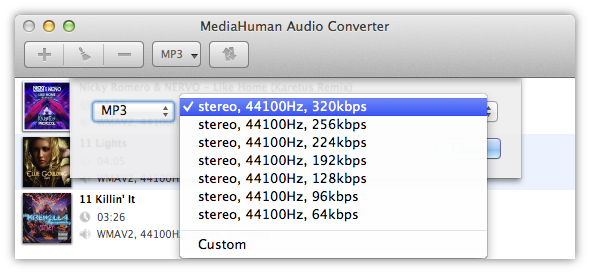
Here you can select MP3 format and specify codec's settings (like channels, bitrate, samplerate). You can select among predefined settings or create a new one. To do it select Custom and specify these options individually. It will be saved for further usages.
-
Start conversion
Now everything is ready to start conversion to MP3. To do it press right button on toolbar.

-
Wait while it works
Conversion process has been started and you can have a rest until it is done. Now we should say, that program uses all power of your processor, so it starts one conversion for every core of it. You can limit it in the app's Preferences.
-
Conversion complete
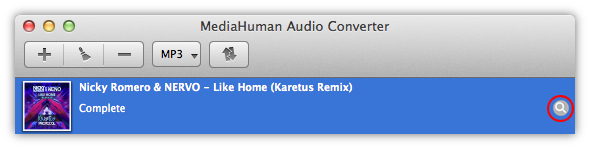
Now all WMA files has been converted to MP3 format. You may locate converted file pressing the Locate button. This button can be pressed for every file you need to open.
We hope you have found this guide as simple and straightforward as our Audio Converter.