 French
 German
 Italian
 Spanish
 Russian
 Turkish
 Portuguese
 Japanese
 Dutch
Dutch Polish
 Korean
 Chinese (Simplified)
 Chinese (Traditional)
How to convert AAC/M4A to MP3 on Windows or Mac
M4A and AAC are popular audio formats, especially on Apple devices, because they are supported by operating system and played well in iTunes. But what if you move to PC or your device does not support it? In that case you need to convert M4A files to MP3 format. And we recommend you to pay attention to our free audio conversion utility.
This guide has been written using the Mac version of the program, but the steps for Windows are the same
-
Add M4A file
Run MediaHuman Audio Converter and press highlighted plus button to add M4A songs you want to convert to MP3 format. Other way to do it is to drag'n'drop files or folders on the application's window.

-
Select MP3 format
Press highlighted Format button and select MP3 as an output format.
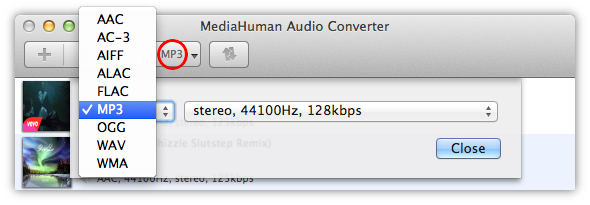
Pressing the arrow on the button will display recently used formats.
-
Set additional format settings
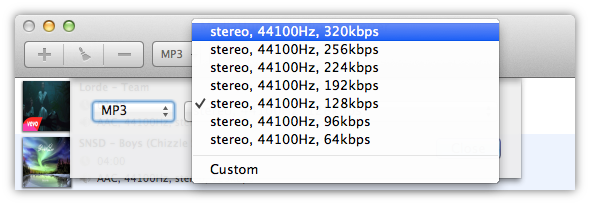
You can select among of predefined MP3 settings or set up your own by choosing Custom.
-
Start it
Now we are ready to start the conversion. Press the Convert button on the toolbar and wait until the conversion process finishes. Press it again if you want to stop the conversion.

-
Done
Congratulations! With minimum time and efforts you have successfully converted your M4A/AAC files to MP3 format. You can locate converted file pressing the Locate button next to it.