 French
 German
 Italian
 Spanish
 Russian
 Turkish
 Portuguese
 Japanese
How to download all videos from YouTube playlist or channel
YouTube playlists and channels are a great way to organize content - but YouTube has no built-in way to save them for offline viewing. Downloading videos one by one takes too long, especially when a playlist has dozens of entries.
MediaHuman YouTube Downloader solves this in a few clicks: paste a playlist or channel link and the app automatically adds all the videos and downloads them in the highest available quality - 4K, HD, or whatever the source offers. Here is a quick step-by-step guide.
This tutorial is written using the Mac version of the program, but the steps are the same for Windows and Linux.
-
Download and Install
Download and install the latest version of MediaHuman YouTube Downloader. It's available for Windows, macOS and Ubuntu/Linux.
-
Copy the link
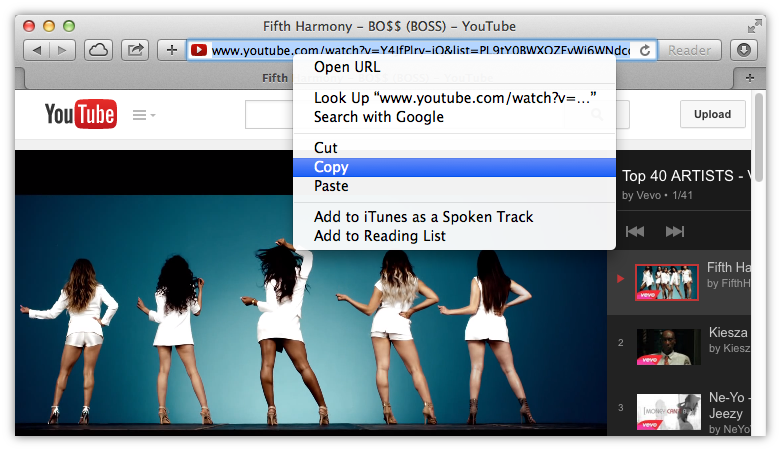
Navigate to the playlist you want to download in your favourite browser and copy its link to the clipboard. It can be a channel, playlist, mix or search results. In our example it's a video from one of the VEVO's playlists.
-
Paste the link
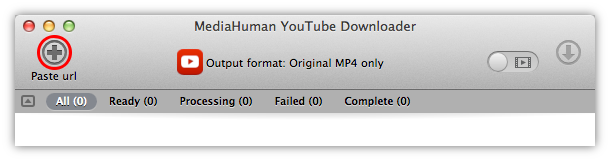
Run YouTube Downloader and paste the link by pressing the first button on the toolbar or by using a paste hotkey (⌘+V on Mac or Ctrl+V on Windows and Linux). You can also drag'n'drop it from the browser.
-
Add the entire playlist
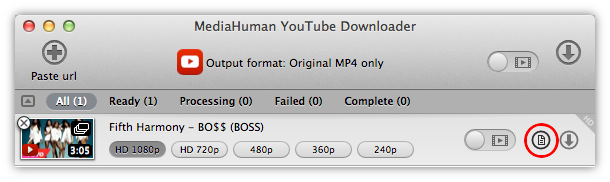
If you added the link to the video contained in playlist, click on Add Playlist icon. And all videos from this playlist will be parsed, added and ready for download.
-
Begin download
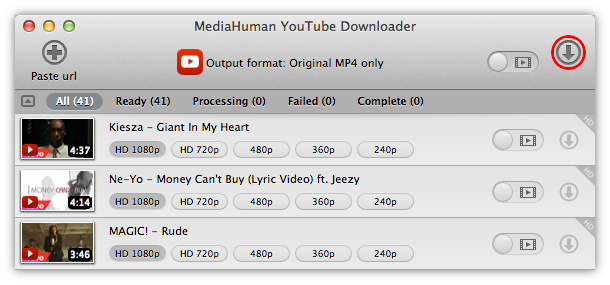
Simply click the Start all button to begin downloading all the videos from the playlist you've just added.