How to use YouTube Music as a desktop app on Mac and Windows
Updated
YouTube Music has no desktop app from Google, so on a computer it usually lives in a browser tab. That tab gets lost among twenty others, closes along with the browser, and the play and pause keys on your keyboard often don't work with it. MediaHuman Waverio is a free desktop player for YouTube Music on Mac and Windows. It runs in its own window, shrinks to a small player that stays on top while you work, and listens to the media keys even in the background. Here is how to set it up in a few minutes.
This guide uses the Mac version of the program. On Windows the steps are the same, and the one difference is noted in step 6.
-
Install Waverio and find some music
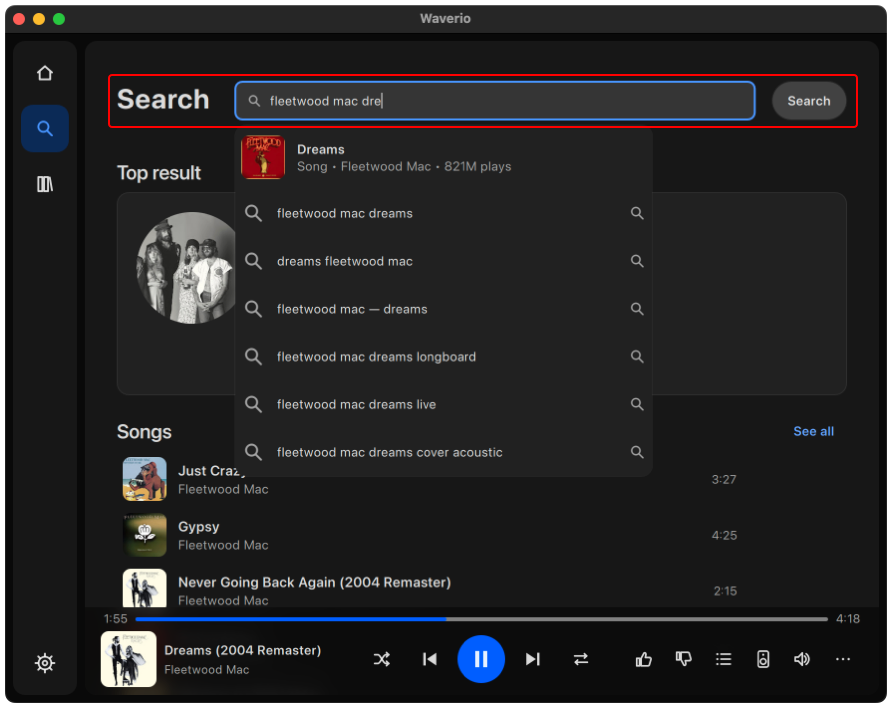
Download Waverio, install it and run it. You don't need an account to start: type a song, an artist or a few words you remember into the search field, and suggestions appear as you type. Click a song to play it, or open an album and play it from the first track. Not sure what you're in the mood for? Open Search with an empty field and pick one of YouTube Music's moods and genres. If someone sent you a link to a playlist or an album, paste it into the search field and press Enter.
-
Let the music keep going
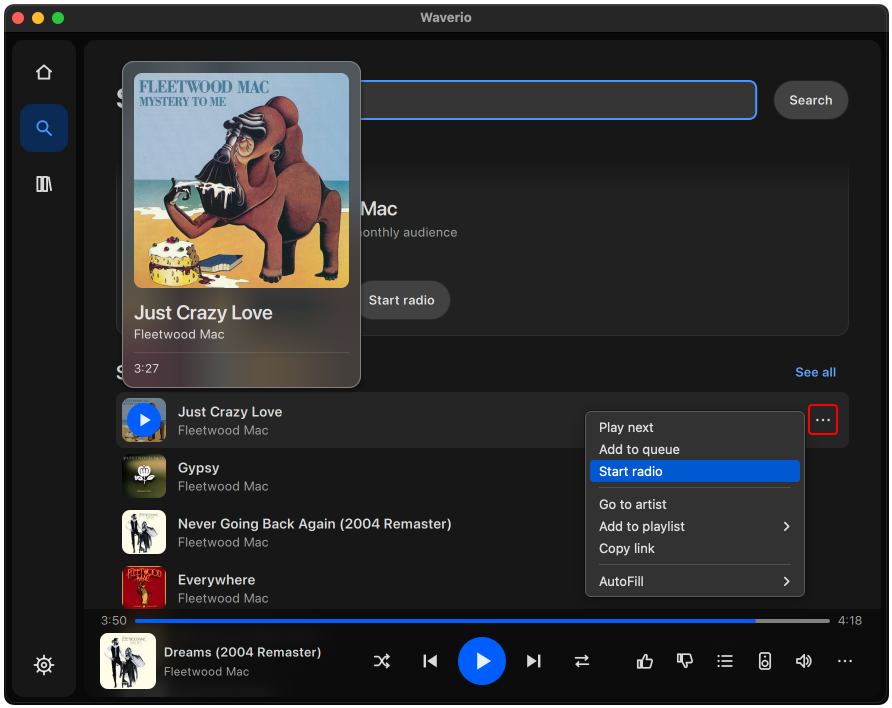
To hear more music like a song you love, click the More actions button (⋯) next to it, or just right-click the song, and choose Start radio. Waverio keeps adding similar tracks for as long as you listen. To steer the radio, open the queue and use the Tune radio list next to the radio's name. In the same menu, Play next puts a song right after the current one, and Add to queue puts it at the end.
-
Switch to the Mini Player
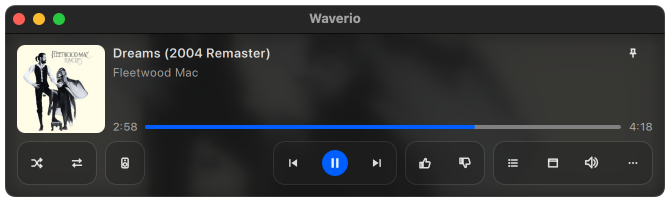
When you need the screen for work, click Open Mini Player in the player bar at the bottom of the window, or simply press I. The big window turns into a small one with the cover and the playback buttons. Press I again to go back to the full window.
-
Keep it above other windows
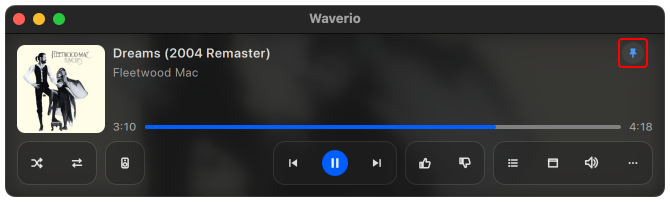
Click the pin button to the right of the song title in the Mini Player (Keep above other windows). Now the little player stays visible on top of your documents and browser, so you can pause or skip a track without looking for it. Click the pin again to turn it off. The Mini Player has its own More actions menu (⋯), so you can like the song or start a radio from it without opening the big window.
-
Control the music with media keys
The play/pause, previous and next keys on your keyboard work even while Waverio is in the background, so you don't have to switch windows at all. Inside Waverio there are more shortcuts: Space or K pauses, ⌘ + ← and ⌘ + → switch to the previous or next song, ⌘ + L likes the current song, and I switches between the Mini Player and the full window. On Windows, use Ctrl instead of ⌘. To see the full list, choose Help → Keyboard shortcuts… or press ⌘ + / (Ctrl + /).
-
Close the window, not the music
On a Mac, closing the main window doesn't stop the song: Waverio keeps playing in the Dock, and the Dock menu has the playback buttons. If you'd like them in the menu bar too, choose View → Show menu bar controls: a small icon appears at the top of the screen, and its menu shows the current song with Previous track, Pause, Next track and Like. On Windows, the music keeps going after you close the main window if the Mini Player is open or View → Show notification area controls is on. Otherwise Waverio asks whether you want to quit. And when you quit and open Waverio the next day, your queue is waiting on the Home page at the same track and the same second. It doesn't start by itself: click Resume when you're ready.


Tip: sign in for your own mixes
Waverio plays music without an account, but if you click Sign in to YouTube and use your YouTube account, the Home page fills up with your own mixes and recommendations. Your queue, playlists and likes are kept on your computer either way. If you'd rather your likes didn't go to your YouTube account, turn off Send likes and dislikes to YouTube in Settings.