MediaHuman Blog
How to Put Music From YouTube on a USB Stick for Your Car
You've found the songs you love on YouTube and want them in the car. Newer cars can play music from a phone, but many older stereos only take a USB stick or a CD, and they're picky about both. A stick that works fine on your computer can show "No file" or "Unsupported" in the car. Usually the problem is how the stick was prepared or what kind of files are on it, and both are easy to fix. TL;DR: Use a USB stick of 32 GB or less, formatted as FAT32. Save the songs as MP3 and keep the cover pictures small or turn them off. Copy whole folders, with numbers at the start of the file names, so they play in order. On a Mac, remove the hidden files the Mac leaves on the stick. If the car only has a CD player, burn an MP3 CD or an ordinary audio CD. To save songs and playlists from YouTube as MP3 files, you can use our YouTube to MP3 Converter →
iPhone Photos Won't Open on Windows? What HEIC Is and What to Do
Your daughter sends you photos from her iPhone, you copy them to your Windows PC, and nothing happens. The files are there, but instead of a picture you see a plain icon, and when you open one, Windows asks you to install something first. Nothing is broken. The photos are in HEIC, a format iPhones use to save space, and Windows doesn't always know what to do with it. TL;DR: The quickest fix is on the iPhone: in Settings, tap Camera, then Formats, and choose Most Compatible. From then on, new photos are saved as ordinary JPG. Photos you already have can be downloaded from iCloud as JPG, or turned into JPG on your computer. Windows can also learn to open HEIC, but websites, forms and other people's computers often still want JPG. If you already have a folder full of HEIC files, here's a way to convert them all at once on your computer: Compressa →
Why There's No YouTube to MP3 App for iPhone (and What Works Instead)
Search the App Store for "YouTube to MP3" and you'll find nothing that does the job. Now and then an app gets in by calling itself a "file manager" or a "music player", but it's usually gone a few weeks later. People who use our YouTube to MP3 Converter on a computer often ask us for an iPhone or iPad version too. There isn't one, and here is why. Everything below applies to the iPad just as much as to the iPhone. TL;DR: Apple doesn't allow apps that save music or video from YouTube, and YouTube's own terms don't allow it either. If you only listen inside YouTube, YouTube Premium lets you play songs offline in its app. If you want real music files in your iPhone's Music app, download them on a Mac or PC and move them to the iPhone. On a Mac, you set this up once and it runs by itself after that. If you have a computer, that is the route we recommend: YouTube to MP3 Converter →
What Your Mac Won't Tell You About Your Music Files
Select a song in Finder, press Space, and Quick Look starts playing it. It's handy, but that's about all it does. It won't tell you what format the file is, how good its quality is or how loud it is, and plenty of music files won't even play. TL;DR: In our test on macOS Sonoma, the Mac's built-in playback, which Quick Look and QuickTime use, handled only 6 of 12 common audio formats. Ogg, Opus, WMA, WavPack and APE files didn't play at all. For the files it does understand, Finder's Get Info shows the bitrate and sample rate, but not the codec, whether the file is lossless, or its loudness. A free menu bar app like Trackray shows all of that in one panel and plays the formats macOS can't. If you'd like to see everything about a track with one shortcut: Trackray →
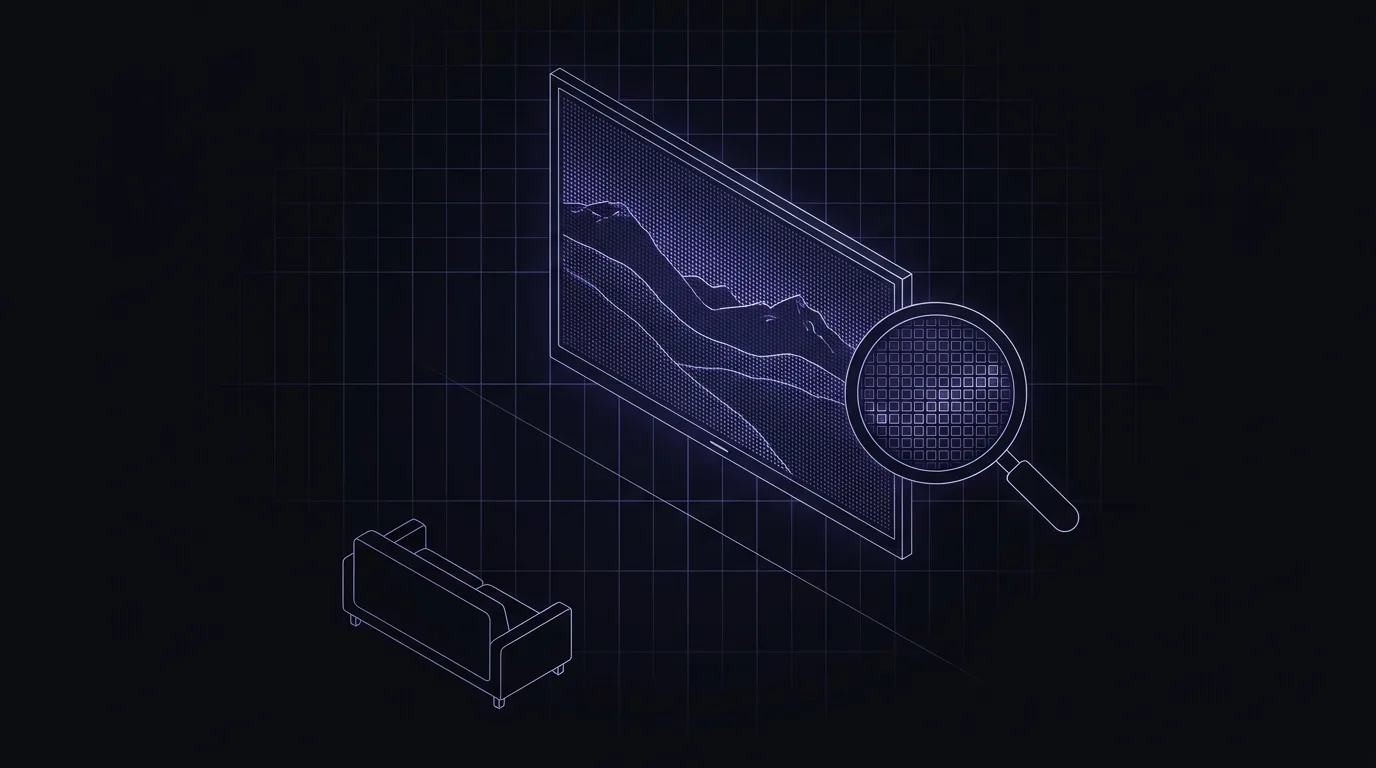
Is 8K Worth Downloading? What Your Screen Can Actually Show
Many YouTube videos now offer 8K in the quality menu, and if you're downloading a video to keep, picking the biggest number feels like the obvious choice. For most people, though, 8K brings no visible improvement at all. It does bring files twice the size of 4K, and on many computers, a video that won't play. TL;DR: For most people, 8K isn't worth downloading. On a 65-inch TV, you'd have to sit closer than about 1.3 meters (4 feet) to see any gain over 4K. In a blind test run by Warner Bros. and several partners, most viewers couldn't tell 8K from 4K at all. An 8K file is about twice the size of 4K and ten times the size of 1080p. YouTube also offers it only in AV1, a format many Macs and older TVs can't play. Pick 4K if you have a 4K TV, and 1080p for everything else. If you want to set this once and forget it: Video Downloader →
Why a Video Won't Play on Your Mac (and How to Fix It)
You double-click a video, and instead of playing it, your Mac says something like "The file isn't compatible with QuickTime Player." The file isn't broken, and neither is your Mac. QuickTime, the player that opens videos by default on a Mac, just doesn't understand every video format out there. TL;DR: QuickTime can't open WebM or MKV files on any Mac, and it can only play AV1 video on Macs with an M3 chip or newer. Apple hasn't said it plans to change that. There are two easy fixes: open the file in a free player like VLC, or convert it once to MP4, which plays everywhere. If you'd rather convert the file once and be done with it: Video Converter →
Why Your Video Is Too Big to Email (and How to Fix It)
You try to email a video, or attach it to a message, and it just won't go through. No clear error, sometimes, just a stuck progress bar or a bounce-back a few minutes later. The video isn't broken. It's just bigger than whatever you're trying to send it through will allow. TL;DR: Most email services cap attachments well below what a modern phone video actually weighs, Gmail at 25MB to send, Outlook.com at 20MB. A few minutes of 4K phone footage can blow past that easily. Zipping the file won't help, video is already compressed, so zipping it barely shrinks it further. What actually works is lowering the resolution, switching to a more efficient format, or trimming the clip, in roughly that order of how much it helps. If you just want this fixed with no reading: Video Converter →
MP4 vs HEVC vs AV1 in 2026: Which Video Format Should You Actually Use
You're about to convert a video and you're staring at a dropdown with MP4, HEVC, and AV1 in it, with no idea which one actually matters. Here's the short version: you don't need to understand codecs to get this right. You need one simple rule, which is below, and everything after it is optional reading. If you'd rather not pick a codec manually: Video Converter →
How to Download a Full YouTube Playlist or Channel in 2026
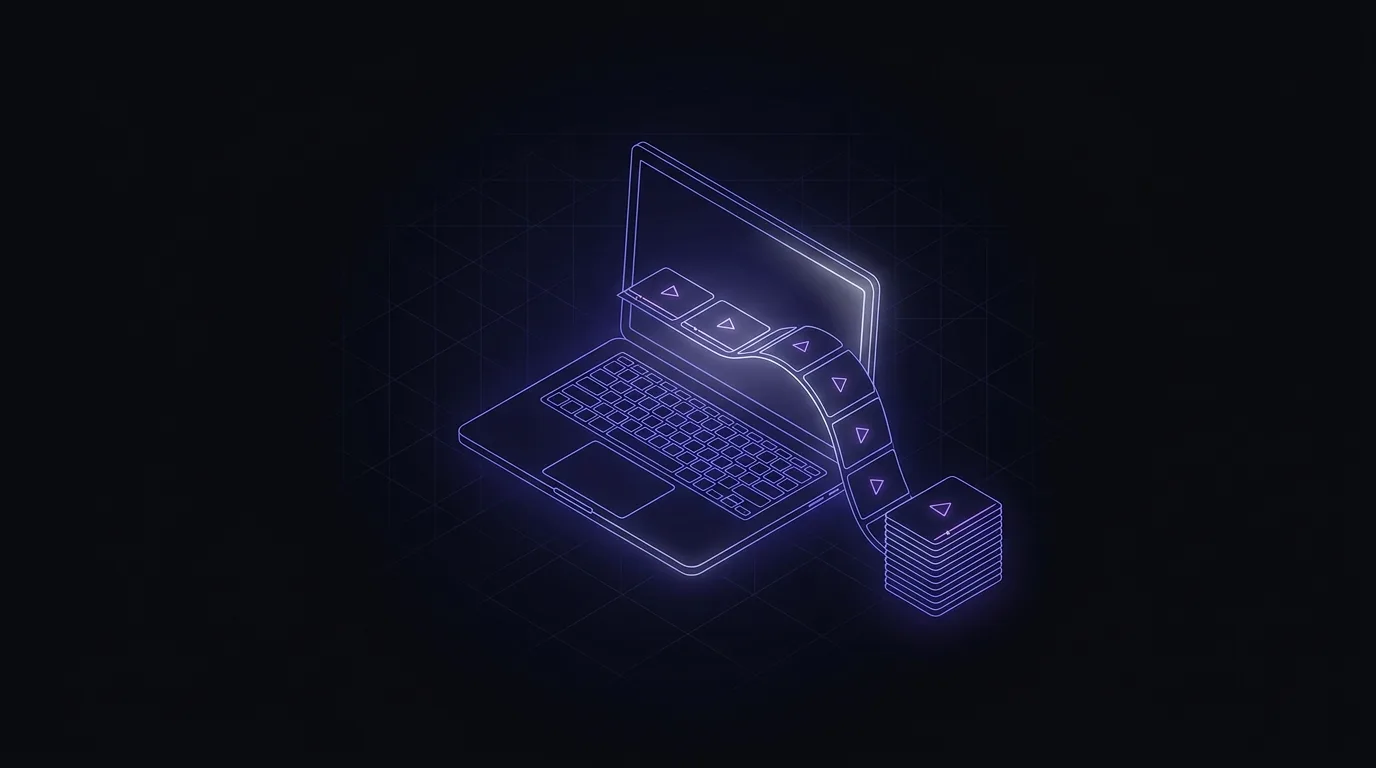
Downloading one YouTube video is simple enough that it barely needs explaining. Downloading an entire playlist or channel, dozens or hundreds of videos at once, is a different task, and it's the one that actually trips people up. Half the frustration people run into has nothing to do with the tool they picked. It's that nobody explained what a batch download actually involves. TL;DR: A playlist or channel download has to work through every video on the list. A few of them will usually fail for reasons that have nothing to do with your downloader: private videos, age-restricted ones, or ones the uploader has since deleted. Large batches can also get you temporarily rate-limited if you go too fast. The fix for both isn't a better single click. It's downloading in a way that can pick up where it left off instead of starting over. If you want to try this yourself: Video Downloader →
Why 320kbps MP3 or FLAC Downloads From YouTube Don't Sound Any Better
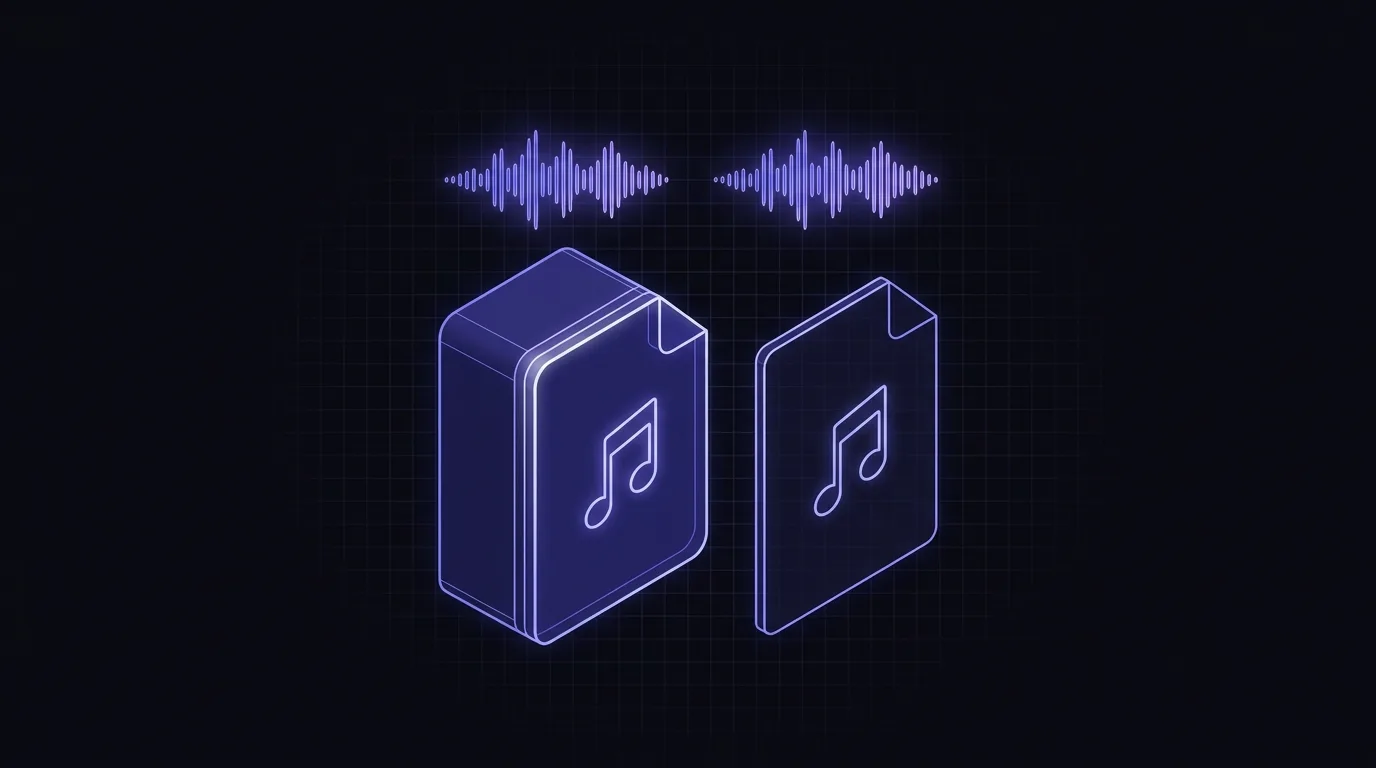
You find a converter that promises 320kbps MP3 or even lossless FLAC from a YouTube video, and it feels like the obviously better choice. Bigger number, better format, better sound, right? Not quite. The honest answer is that the quality was already decided before you downloaded anything, and no output format can change it after the fact. TL;DR: YouTube doesn't send your browser a 320kbps MP3 or a lossless file in the first place. It streams compressed audio, usually Opus around 160kbps or AAC around 128kbps, depending on the video and your device. (YouTube Music Premium subscribers get a real exception to that, covered below.) Once that compression has happened, converting the result to 320kbps MP3 or to FLAC or WAV can't add back detail that was never there. You get a bigger file holding the same, already-reduced audio. This post walks through why, and what's actually worth doing instead. If you just want the best audio YouTube can actually give you: YouTube to MP3 Converter →
YouTube to MP3 Converters in 2026: What Still Works vs What Got Shut Down
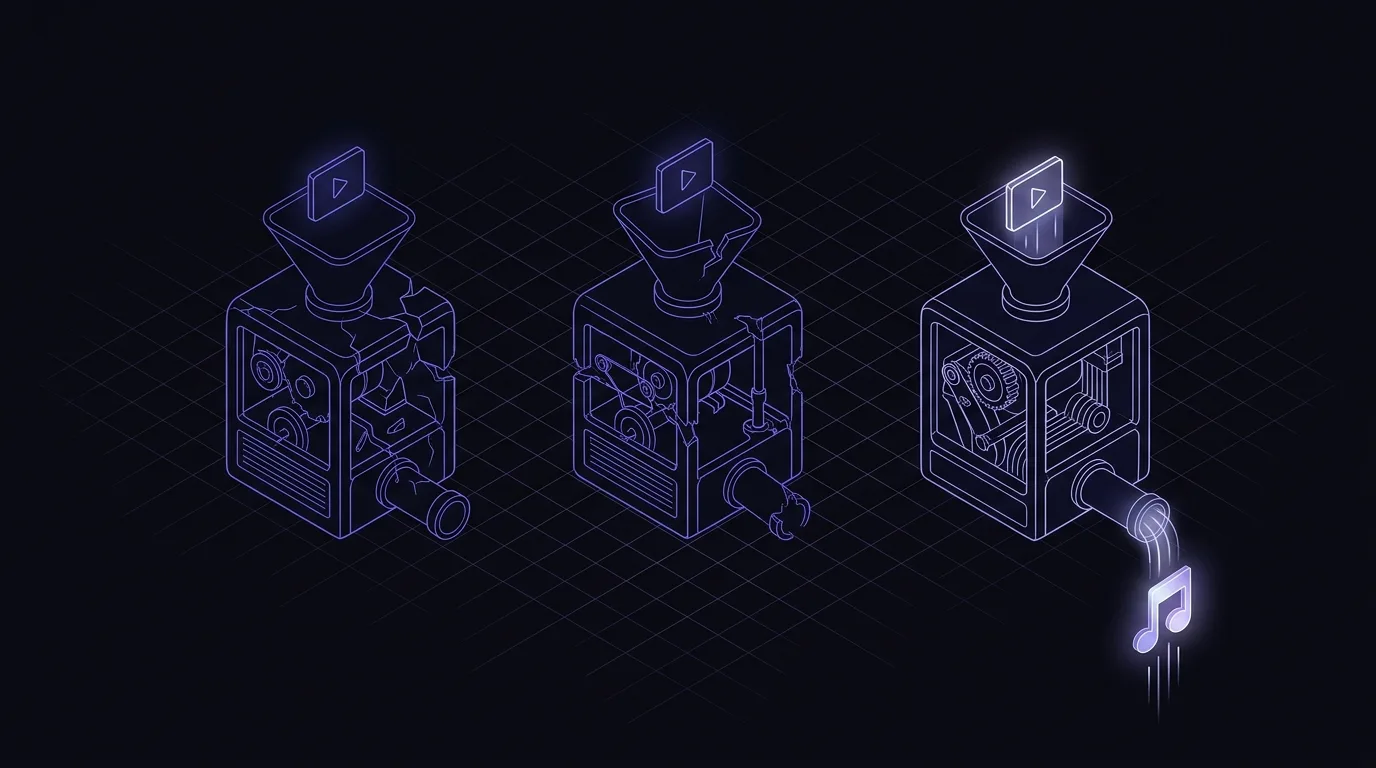
You bookmark a YouTube to MP3 site, it works fine for months, and then one day it just stops. No error message that makes sense, no obvious reason, no warning. If that happened to you recently, you're not imagining it, and it's not just bad luck. TL;DR: Since late 2025, YouTube has gotten noticeably better at detecting and blocking requests that don't come from its own official apps or website. Google has also been sending legal takedown notices to large downloader sites since 2023. A lot of tools that relied on scraping YouTube's internal pages broke as a result. Tools built on actively maintained extraction code have mostly kept working, because someone patches them whenever YouTube changes something. The rest of this post explains the difference and how to spot it yourself. If you want to try a converter that's actively maintained: YouTube to MP3 Converter →