
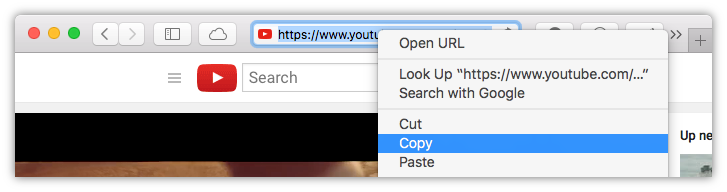
Open your favorite browser and find the video you like. Then select URL in the address bar and copy it to the clipboard.
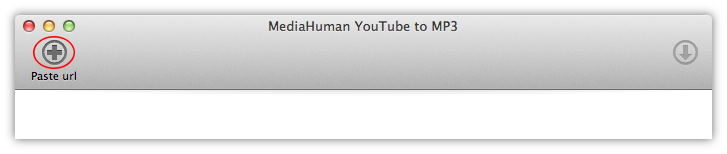
Now switch back to YouTube to MP3 Converter and press the Paste link button on the toolbar or simply press Ctrl+V on PC or ⌘+V on Mac.
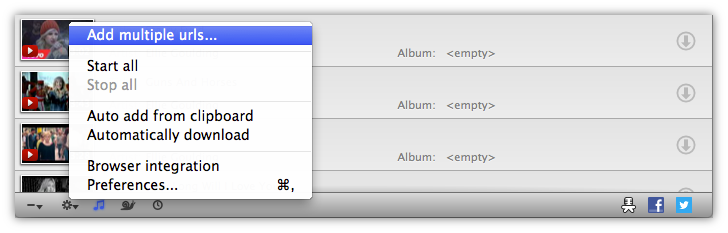
Copy a link from the browser like in the previous method and switch back to the program. Then click on the gear icon at the bottom left corner of the window and select Add multiple links from the popup menu. A window will appear there you can paste the copied link or as many links as you want. After editing press OK and all of the links will be added to the download list.
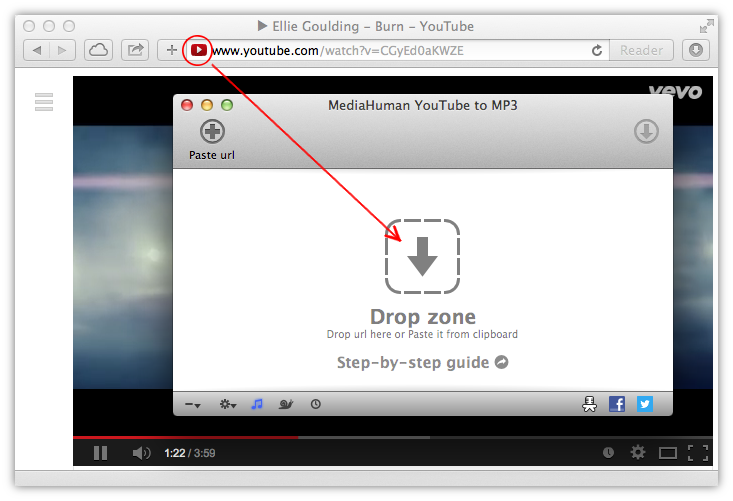
Another intuitive way is a link drag and drop. Just drag the link from the browser and drop it onto the window of YouTube to MP3 Converter.
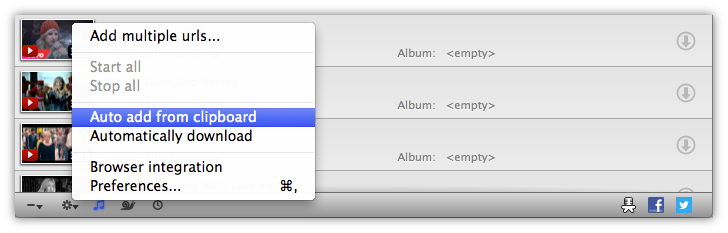
There is an option for adding links automatically. To enable this feature click on the Gear icon at the bottom left corner and select Auto add from clipboard. The app will monitor the clipboard and once it detects a supported link it will add it to the download list.
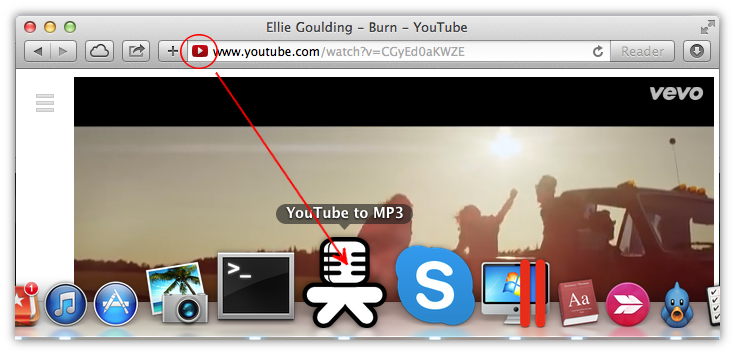
Another method works on macOS only. You can drag and drop video link from browser (or any other app) and drop it on the YouTube to MP3 dock icon.
 English
 Français
 Deutsch
 Italiano
 Español
 Русский
 Türkçe
 Português
 日本語
日本語